← Back to Help Center

Platform Overview

Understand the SEE → UNDERSTAND → ACT → MONITOR loop and navigation map.

Platform overview

GEO Agent is an AI-native workbench: you land in the Agent chat on the right; Discover / Create / Workspace organize capabilities on the left, with a Sessions list for returning to past work.

Layout

Area Purpose
Top bar Logo, credits, purchase, account menu (theme / language / help)
Left nav New Session, Discover, Create, Workspace + Sessions list
Main area Agent chat, or Discover / Create / Workspace pages with horizontal tabs
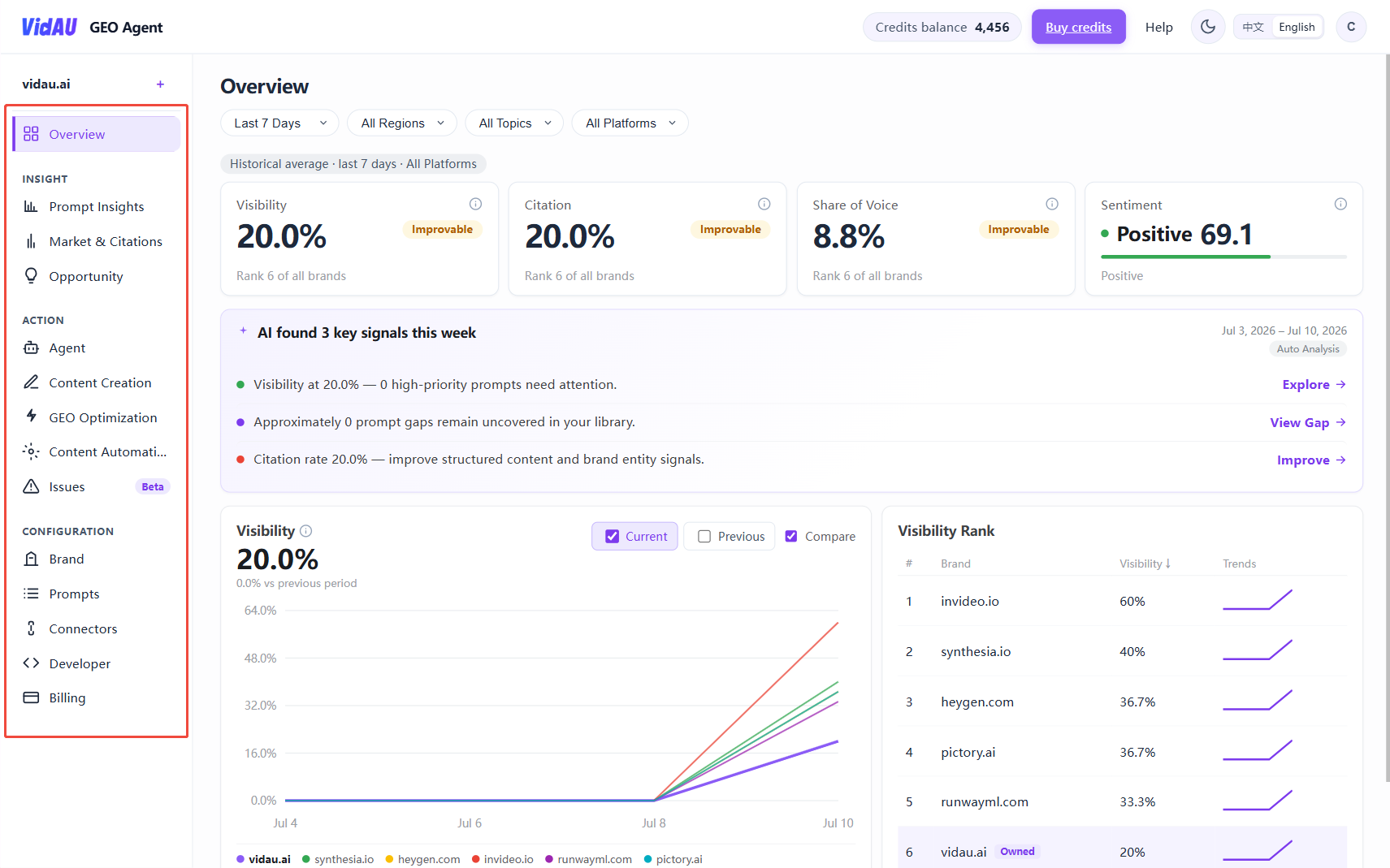
Left navigation

New Session

Page Path Purpose
Agent /app/agent Default workbench: audits, proposals, writing, optimization

New Session clears the current chat and opens a fresh Agent conversation.

Discover

Page Path Purpose
Overview /app/discover/overview KPI dashboard: Visibility, Citation, SOV, Sentiment, trends
Prompt Insights /app/discover/prompts Analytics, query fanout, and search volumes
Market & Citations /app/discover/market Competitive rankings and AI platform performance
Opportunity /app/discover/opportunity Content gaps, citations, community
Issues /app/discover/issues Prompt backlog and priorities

Create

Page Path Purpose
Content Creation /app/create/write New GEO articles
My articles /app/create/articles Drafts and article library
GEO Optimization /app/create/optimize Existing page optimization
Content Automation /app/create/automation Scheduled publishing (requires setup)

Workspace

Page Path Purpose
Brand /app/workspace/brand Brand, domain, competitors, keyword library
Prompts /app/workspace/prompts Tracked AI search prompts
Connectors /app/workspace/connectors WordPress and other publish channels
Developer /app/workspace/developer MCP and API keys

What to open first

  1. Agent — run a site audit
  2. Discover → Overview — review AI visibility KPIs
  3. Create → Content Creation — write for opportunity prompts
  4. Workspace → Brand / Connectors — configure site and publishing
signed-in left navigation